Fortnite Editing Basics: Doors, Windows, Reset, and Simple Edit
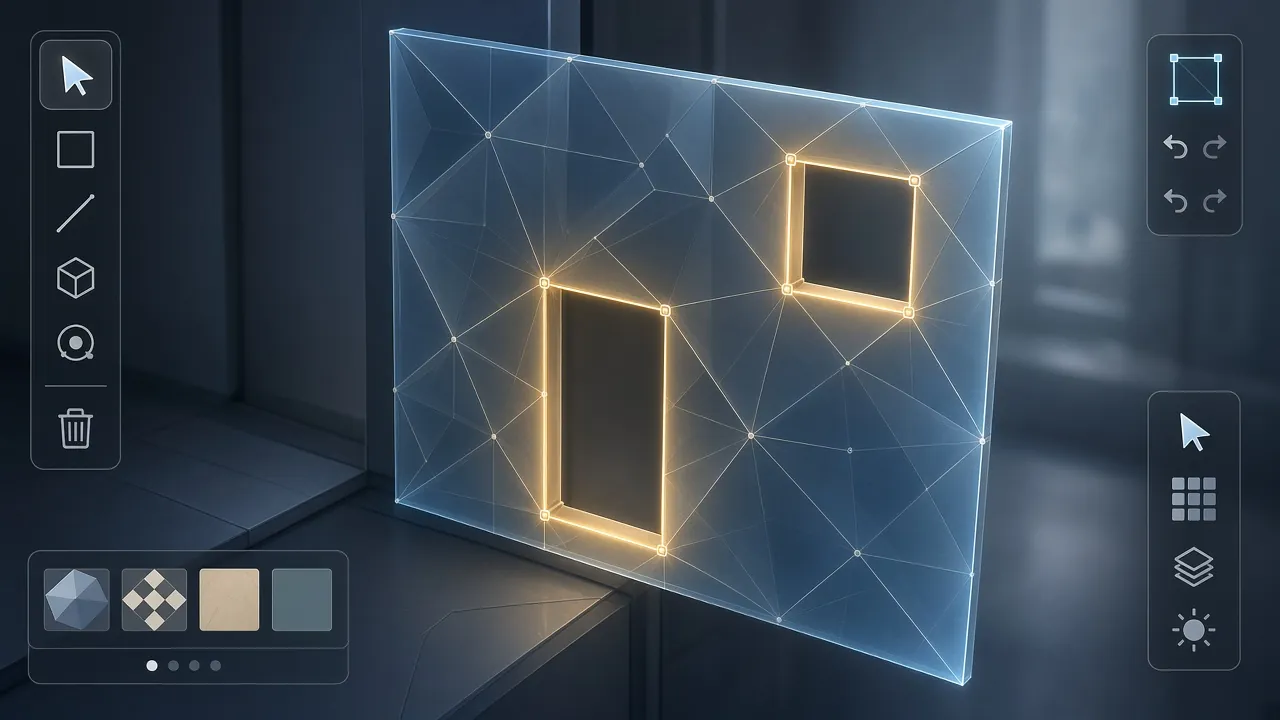
Edit your own builds into doors and windows, reset pieces safely, and know when Simple Edit helps—and when it is unavailable.
Requirements
- Build-enabled mode
- Materials to place practice walls
- Edit and Reset Edit binds you can reach comfortably
Steps
- 1
Enter edit mode on your piece
Aim at a wall, floor, ramp, or roof you own (or a teammate’s, depending on team settings) and use your Edit control. You will select tiles on that piece to cut openings.
- 2
Cut a door
On a wall, select a door-shaped set of tiles and confirm the edit. A door lets you leave a box without destroying the wall. Practice placing a box, editing a door, walking out, then returning.
- 3
Cut a window carefully
A window gives vision and a firing lane, but enemies can shoot through it too. After you take a shot or peek, reset the edit to restore the full wall.
- 4
Reset instead of replacing
Use Reset Edit to return a piece to its original full shape in one action. This is faster and cheaper than breaking and rebuilding when you only needed a temporary opening.
- 5
Try Simple Edit while learning
Open Settings → Game and find Simple Edit. Turning it on lets common edits happen with fewer inputs; optional Tap To Simple Edit uses a single press. Simple Edit is not available in competitive game modes.
- 6
Drill a short Creative routine
In a Creative practice map or quiet private space, repeat: place wall → box → ramp → door edit → reset → leave. Controlled repetitions beat attempting flashy sequences in live fights.
Tips
- Start with Simple Edit if the tile grid feels overwhelming, then switch to standard editing before Ranked if you plan to compete.
- Build with a purpose: cover, a heal box, or a ramp to a better angle—speed comes after accuracy.
- Confirm your Edit bind is easy to hit without leaving movement keys.